
GPT Image 2 prompting guide: 5 techniques for better images
Image models have gotten good enough that the model is rarely the bottleneck. The prompt is. GPT Image 2 in particular rewards specific prompts and is unusually good at one thing most models struggle with: rendering real, legible text.
Below are five techniques, each with the exact prompt I used and the image it produced. Every one of these was generated through ApexApi with openai/gpt-image-2. Copy the prompts, swap in your subject, and you have a starting toolkit.
1. Be specific: subject, setting, light, medium
Vague prompts get vague images. Name the subject, where it is, how it is lit, and what kind of image it is.
A ripe avocado halved on a white marble kitchen counter, soft morning
light from a nearby window, shallow depth of field, fresh and clean
food photography.
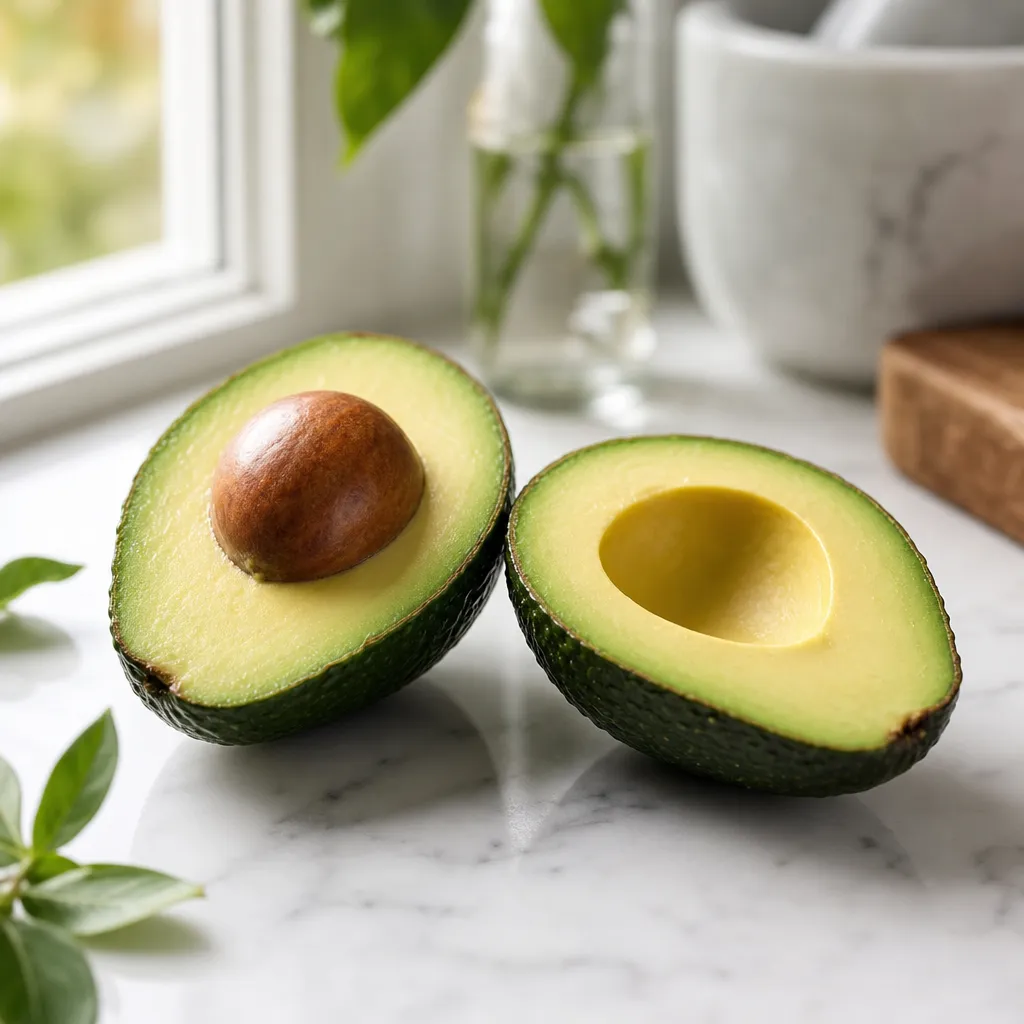
Takeaway: four ingredients (subject, setting, light, medium) already get you a usable, professional-looking result.
2. Direct the light and the mood
Lighting words carry the emotion. Swap "soft morning light" for "neon" and "cinematic" and the same kind of scene changes character completely.
A lone figure holding a red umbrella on a rain-soaked Tokyo street at
night, glowing neon signs reflected in the wet asphalt, cinematic moody
lighting, shallow focus, atmospheric.
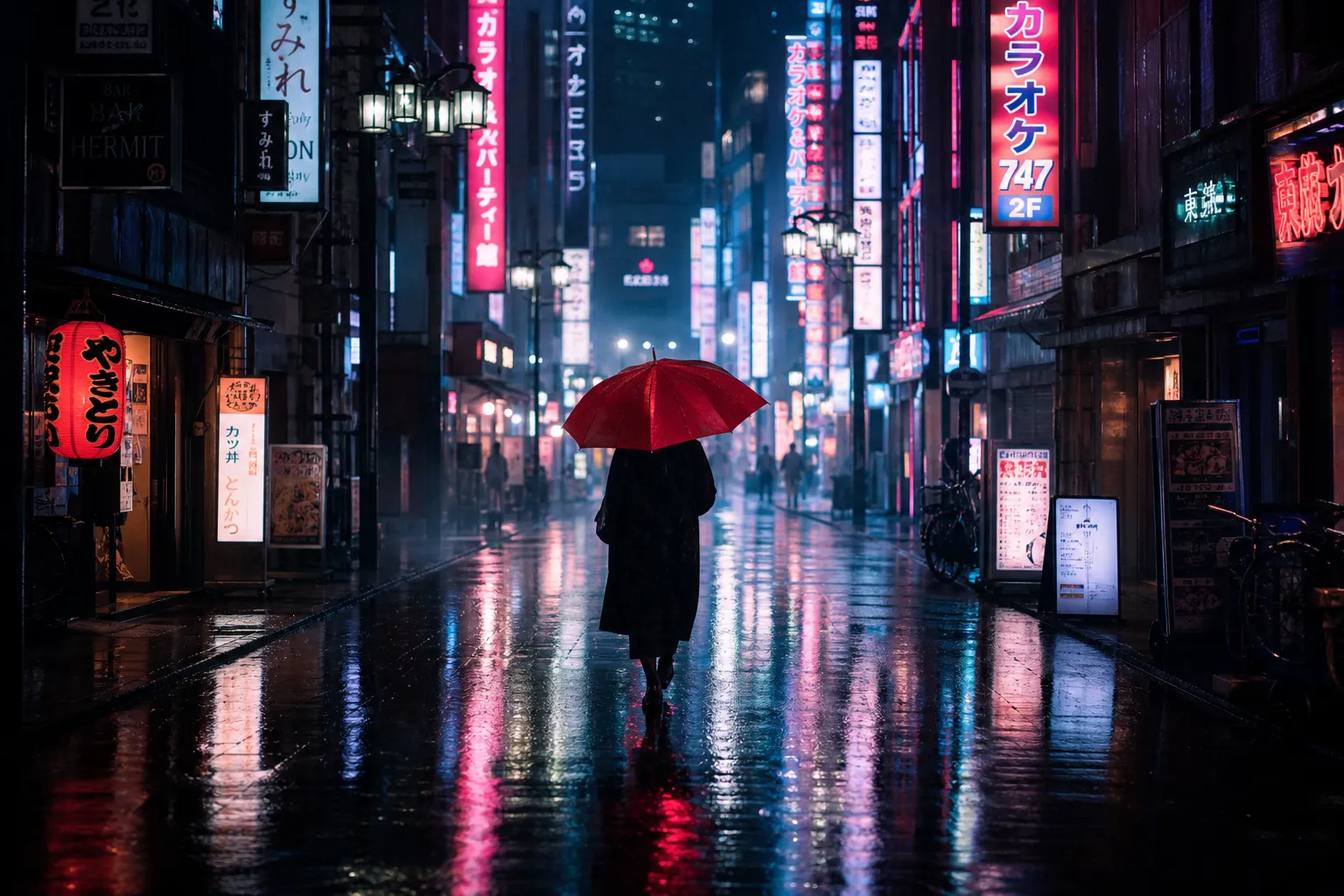
Takeaway: words like cinematic, moody, neon, golden hour, and backlit are the fastest way to set a feeling.
3. Name the exact medium or style
If you do not name a style, the model picks one. Say what you want: photo, 3D render, flat vector, oil painting, sticker.
A friendly rounded robot mascot waving hello, flat vector illustration,
bold primary colors, thick clean outlines, minimal flat shading, sticker
style on a plain off-white background.
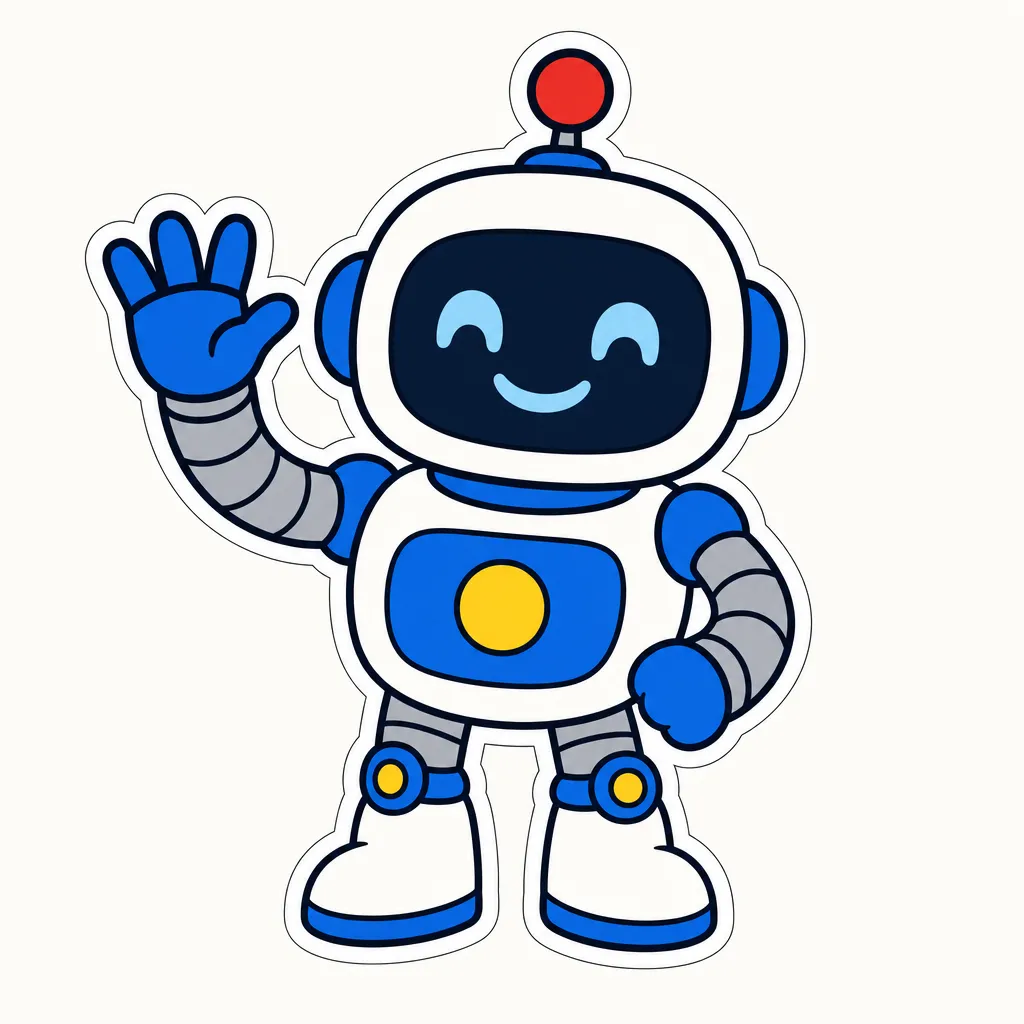
Takeaway: naming the medium ("flat vector", "sticker style") is what separates a clean asset from a generic render.
4. Put real text in quotes (this is the superpower)
This is where GPT Image 2 pulls ahead. Most models garble text. GPT Image 2 renders it cleanly, so put the exact words you want in quotes.
A retro-futurist travel poster with the bold vintage headline
"MARS COLONY ONE" and the tagline "YOUR NEW HORIZON" at the bottom,
muted orange and cream palette, subtle screen-print texture, stylized
rocket and dunes.
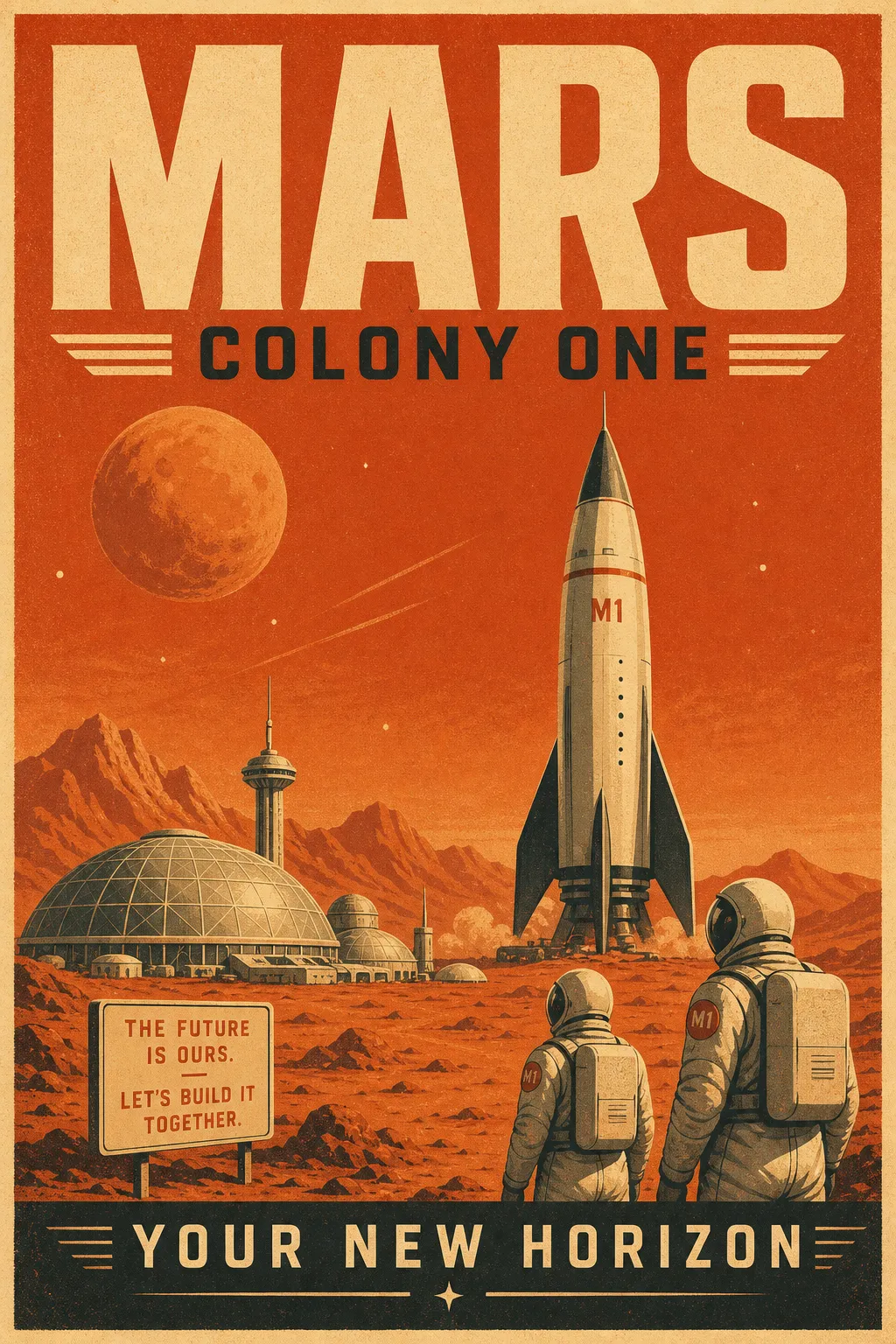
Takeaway: for posters, labels, packaging, UI mockups, or memes, quote the exact copy. This alone is a reason to reach for GPT Image 2.
5. Control the composition and camera
Tell the model where the camera is and how the frame is arranged: top-down, close-up, symmetrical, negative space.
A single ceramic coffee cup centered on a light wooden table, top-down
flat-lay, symmetrical composition, soft even daylight, generous negative
space around the cup, minimal product photography.
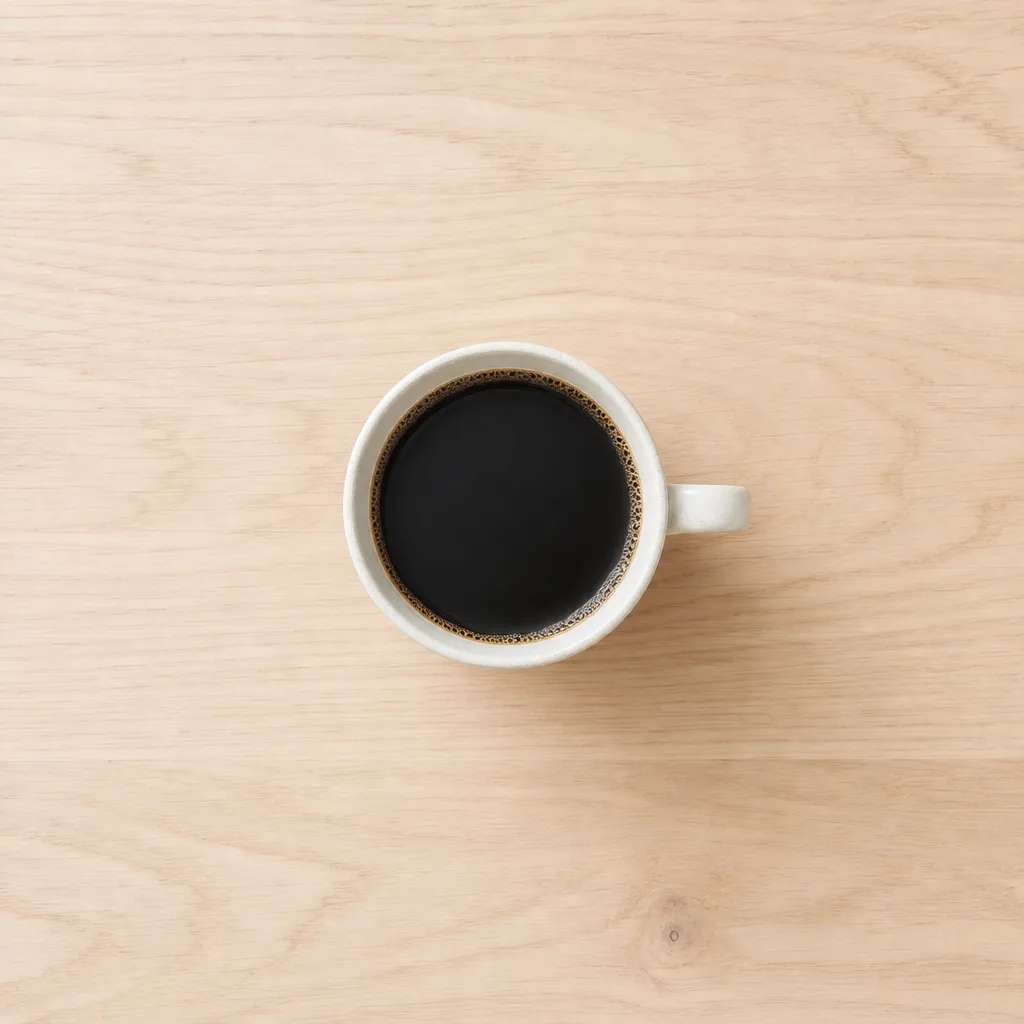
Takeaway: camera and composition words ("top-down flat-lay", "negative space") give you layouts you can actually design around.
A prompt formula you can reuse
Stack the five together and you have a repeatable recipe:
[subject] + [setting] + [lighting / mood] + [medium / style] +
[composition / camera] + "[exact text in quotes]"
You do not need all six every time, but the more you specify, the less the model guesses.
How these were made
Every image here was generated with openai/gpt-image-2 through ApexApi, one OpenAI-compatible endpoint and a single key, billed per image. See the live price and specs on the GPT Image 2 model page, or browse the other image generation models you can call with the same key.
Want to generate images like these straight from your editor or an agent? You can wire GPT Image 2 into any MCP client with the ApexApi MCP. See Add every model to Claude Code with the ApexApi MCP for the full setup.
Where to go next
- GPT Image 2 API: live pricing and how to call it.
- Image generation models: every image model on one key.
- One API key for every model: the wider idea.
Better images are mostly better prompts. Steal these, then make them yours.
Frequently asked questions
- What makes GPT Image 2 different from other image models?
- Its strongest edge is text rendering. It writes clean, legible text inside an image far more reliably than most models, which makes it great for posters, labels, mockups, and anything with words. It also follows detailed prompts closely.
- How do I write a good GPT Image 2 prompt?
- Name the subject, the setting, the lighting, the medium or style, and the composition. The more of those five you specify, the more control you get. Put any words you want rendered in quotes.
- How do I call GPT Image 2 through an API?
- Use the model slug openai/gpt-image-2 on ApexApi's OpenAI-compatible image endpoint. One key, pay per image. See the model page for live pricing.
- Which size and quality should I use?
- GPT Image 2 supports 1024x1024, 1024x1536, and 1536x1024. Higher quality costs more per image. Pick the aspect ratio that matches your use (square for icons, portrait for posters, landscape for scenes).
Recommended
More posts
- GPT Image 2.5 is live on ApexApi: Sunburst and Flare, five quality levels, one key
OpenAI's GPT Image 2.5 models are in the ApexApi catalog as openai/gpt-image-2.5-flare and openai/gpt-image-2.5-sunburst. Two new quality levels, sharper edits, and prices from $0.0071 per image all-in. Here's what changed, what each level costs, and which model to pick.
- How an AI agent funds and pays for its own API calls
Registration, balance and top-up as three HTTP calls instead of three web forms. The flow, the caps that keep it safe, and when a human is still required.
- Scrape, crawl and extract on the same key as your models
Three web context endpoints on the balance that already pays for inference. What each one costs, when to reach for which, and what you stop maintaining.
One API key for every AI model
Start free